 Expanager
How to reconcile your expenses with a bank statement
Reconciling means checking what you recorded against what the bank says actually happened. It's the step that turns an expense tracker from "roughly right" into something you can trust. Expanager does it in a few minutes: load the statement PDF, Excel or CSV, and it shows what's matched, what's on the statement but missing from the app, and what's in the app but not on the statement. Everything happens on your phone.
Why bother reconciling
Even with automatic entries from bank SMS, a tracker drifts. A payment arrives while the phone is off. A subscription renews without a message. You record a dinner twice because two people reminded you. A refund lands and nobody tells the app. After a few months, your monthly total is close but not right, and "close" is enough for the budget warnings to lose their meaning.
Reconciling once a month, when the statement arrives, catches all of it. Done by hand, that means two lists side by side and a lot of scrolling. Done by the app, it's three lists and a few taps.
Before you start
- Download the statement from your bank's website or app as PDF, Excel or CSV. The PDF your bank emails you works too, even if it's password-protected.
- Know which wallet in Expanager the statement belongs to: a bank account, or a credit card.
- Reconciliation is part of Expanager Premium. If you only need to get entries into the app, importing a CSV or Excel file is free.
Step by step
- Open the wallet. On the Wallets tab, tap the bank account or card, then choose ⋮ → Reconcile statement. (It's also under ⋮ → Reconcile statement on the main screen.)
- Add the statement. Tap Add statement and pick the file. Enter the password if the PDF has one.
- Check the period and payment modes. Expanager works out the statement's date range and which of your wallets it covers. Adjust if needed, then let it compare.
- Review the three lists:
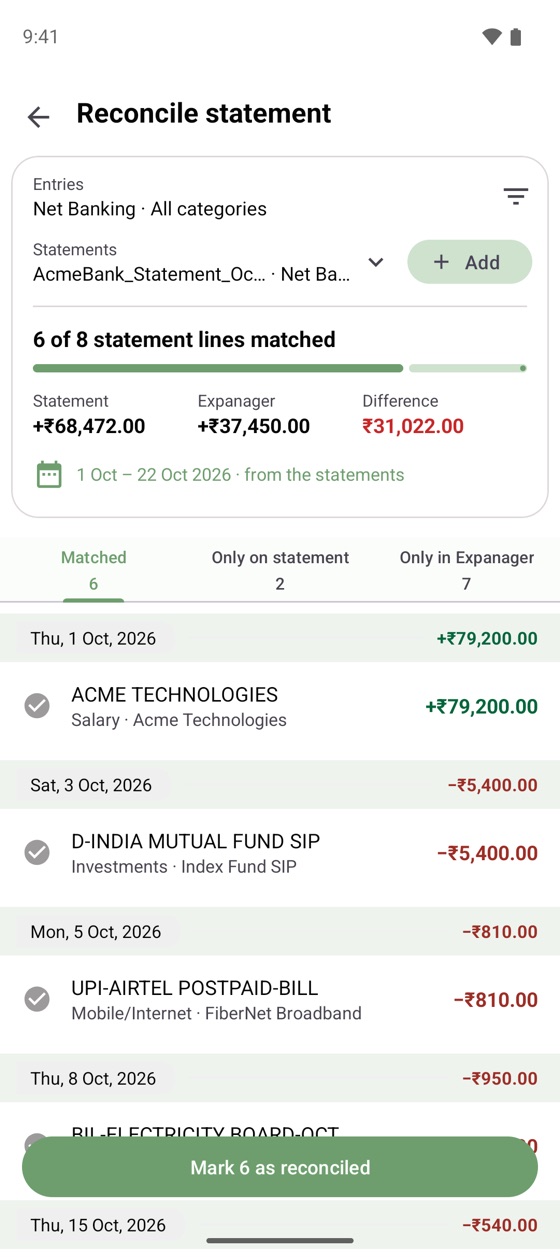
- Matched: statement lines with a matching entry in the app. Nothing to do.
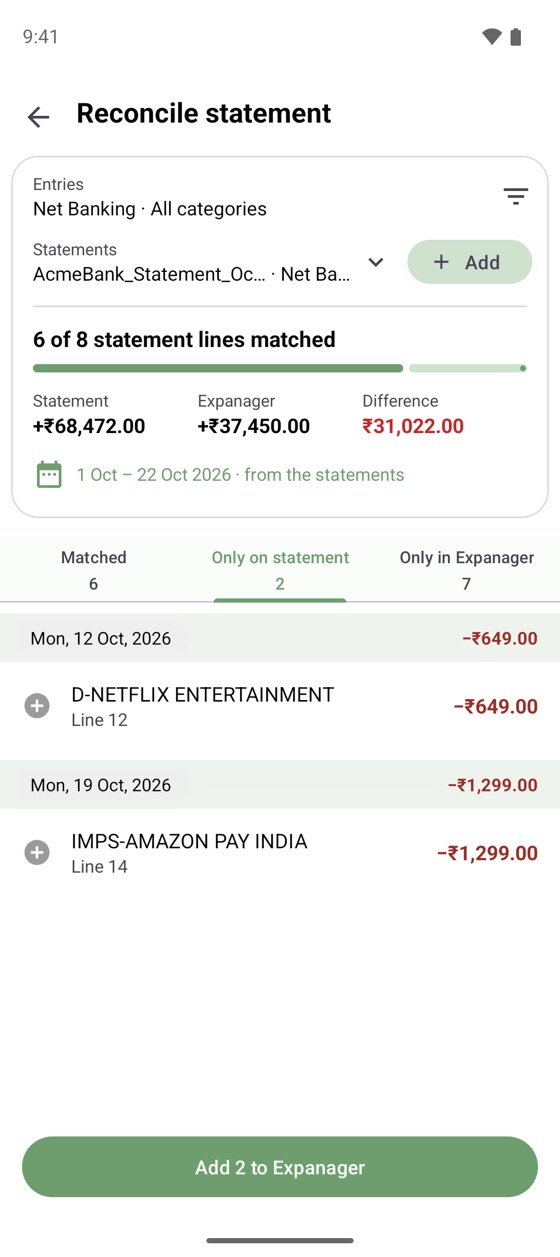
- Only on statement: real transactions you never recorded. Add them with one tap; the amount, date and description are filled in.
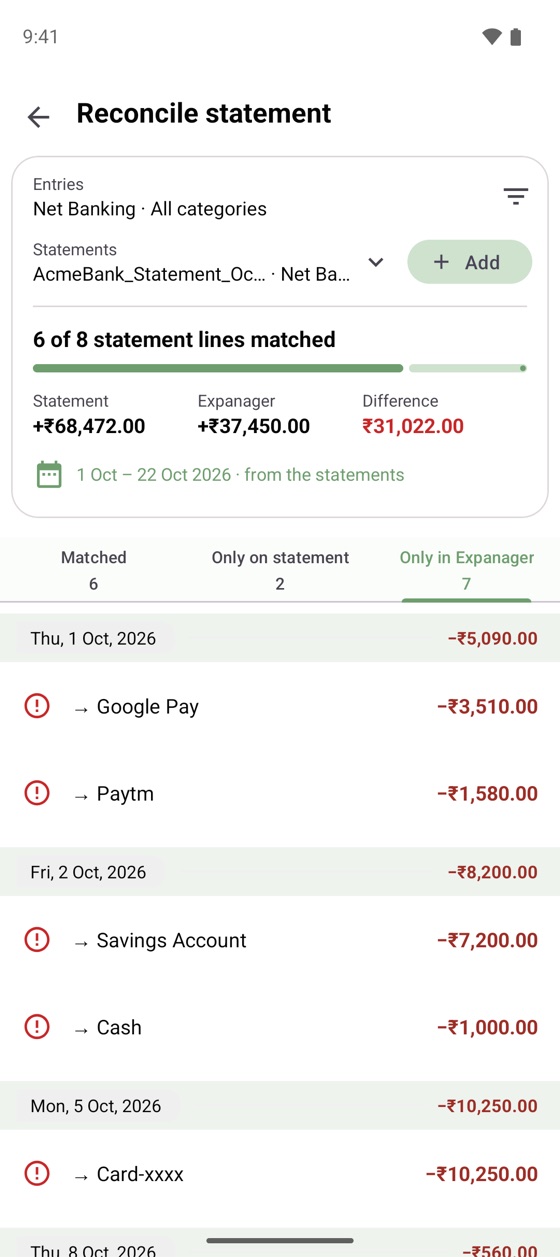
- Only in Expanager: entries with no transaction behind them. Duplicates, wrong dates, or a payment that was actually cash. Fix or delete.
- Mark as reconciled. Once the lists agree, mark the matched entries as reconciled. Next month, only new entries need checking.
Tips from doing this every month
- Credit cards first. Card statements are where silent charges hide: annual fees, converted EMIs, foreign-currency mark-ups. Reconciling the card tends to find more than reconciling the bank.
- Transfers between your own wallets appear on both statements, once as a debit and once as a credit. In Expanager they should be a single transfer, not an expense plus an income. If a transfer shows up under "Only on statement", record it as a transfer.
- Refunds are income to the wallet, not negative expenses. Add them as income in the category of the original purchase so the category total comes out right.
- Do it on statement day. A month of differences is a five-minute job; six months is an afternoon.
Privacy
A bank statement is about the most sensitive document you have. Expanager reads it on your phone, compares it with the entries on your phone, and keeps nothing on any server, because there isn't one. The file stays wherever you downloaded it. See the privacy policy.
Frequently asked questions
What does reconciling expenses mean?
Checking the entries in your expense tracker against your bank or card statement, so that every real transaction is recorded once, and nothing is recorded that didn't happen. It's how you know your totals are true.
Which statement formats does Expanager accept?
PDF, Excel and CSV, downloaded from your bank's website or app. Password-protected PDFs work too; you enter the password in the app.
Is my statement uploaded anywhere?
No. The statement is read on your phone and compared with your entries on your phone. Nothing is sent to a server.
Is reconciliation free?
Statement reconciliation is part of Expanager Premium, available as a subscription or a one-time purchase. Importing entries from a CSV or Excel file is free.
Totals you can trust.
Free to download. No ads, no sign-up, no data leaving your phone.
