 Expanager
How to track credit card bills and due dates on Android
Add each credit card to Expanager as a wallet with its limit and due date. From then on, your bank's card alerts become entries automatically, the Wallets tab shows how much of each limit is used and when the next bill is due, and a recurring entry reminds you to pay. All of it is free, with no ads.
- Wallets tab → Add Payment Modes → type Credit card → enter the name, limit and due date.
- Turn on the SMS helper so card spends are added for you.
- Pay the bill as a transfer from your bank account to the card.
Why cards are the hardest thing to track
A credit card breaks the simple rule that money leaves your account when you spend it. You spend in October, the statement arrives in November, and the money leaves in December. Keep two or three cards and you're juggling different statement dates, different due dates and different limits, usually from memory. Most late fees aren't because people couldn't pay; they're because the date slipped past.
The fix is to treat each card as what it is: a separate wallet with a negative balance, a limit and a date.
Step 1: add each card as a wallet
- Open the Wallets tab and tap Add Payment Modes.
- Choose the type Credit card and give it a name you'll recognise, such as "Visa Platinum" or "Card-4821".
- Enter the card limit and the due date. If you already owe something on it, enter that as the opening balance so the running figure is right from day one.
- Repeat for each card.
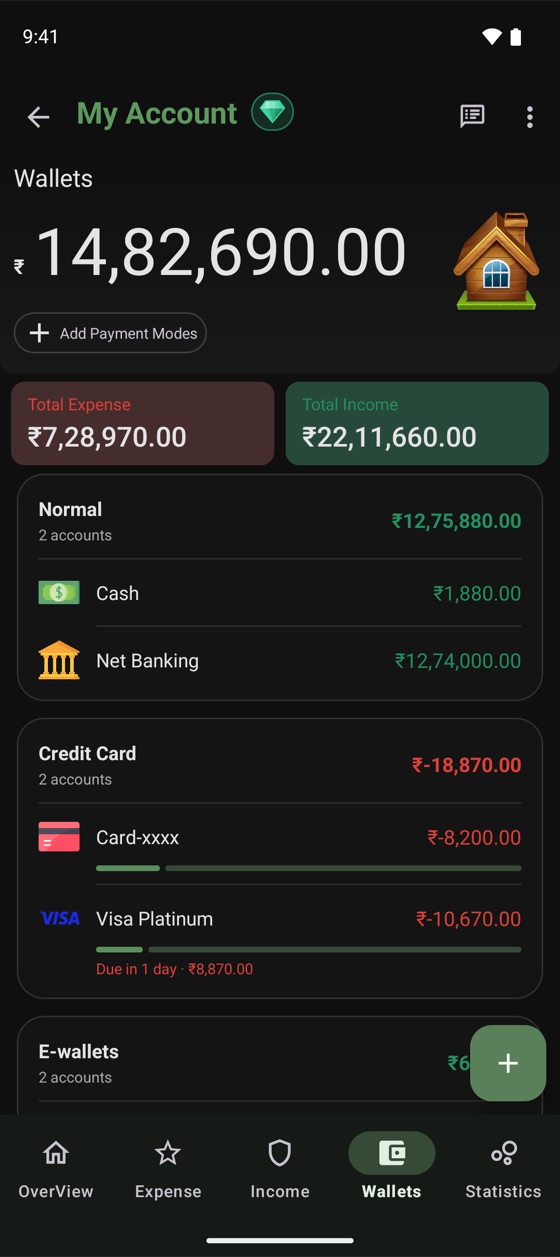
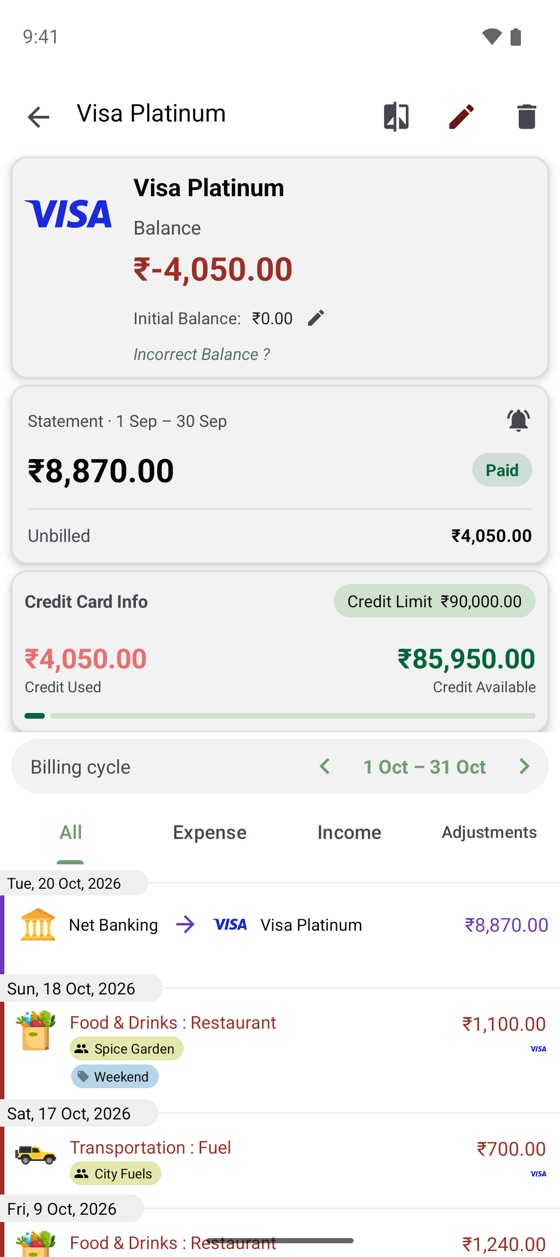
The Wallets tab now groups your cards under Credit Card with a combined total, and under each card a bar shows how much of the limit is used and a line such as "Due in 1 day · ₹8,870.00".
Step 2: let card spends add themselves
Banks send an SMS for every card transaction. Turn on ⋮ → Settings → Transaction Helpers → SMS based transaction helper and Expanager picks those alerts up on your phone, prepares an entry with the amount and merchant, and suggests a category. Tap Add, confirm the card as the payment mode, and the spend is recorded against that card. A message like "INR 349.00 spent on Acme Bank Credit Card XX7712 at Galaxy Cinemas" becomes a ₹349 Entertainment entry on that card in one tap. (More on how SMS reading works.)
Because every spend lands on the right card as it happens, the card's balance in Expanager is the bill you'll get, before the statement arrives.
Step 3: pay the bill as a transfer
This is the step people get wrong. When you pay the card bill, don't record it as an expense. The spending was already counted when you bought things. Paying the bill just moves money from your bank account to the card, so record it as a transfer from the bank wallet to the card wallet. Your expense totals stay true and the card's balance goes back towards zero.
If you pay the same card on the same day every month, make the transfer a recurring entry with a reminder. Expanager adds it on the day and reminds you, so the due date stops living in your head.
What you can see once this is set up
- Across all cards: the total you owe right now, on the Wallets tab.
- Per card: the limit used, the due date, and the full history of spends when you tap the card.
- In your budgets: card spends count towards the category budgets like any other expense, so a budget warning arrives while there's still time, not when the statement does.
- In Statistics: spending by category across cash, bank and cards together, so "Food" means all your food, however you paid.
Frequently asked questions
How do I record paying a credit card bill?
Record it as a transfer from your bank account to the card, not as an expense. The spends were already counted when you made them; the bill payment just moves money between two of your own wallets.
Can Expanager track more than one credit card?
Yes. Add each card as its own wallet. The Wallets tab groups them under Credit Card with a combined total and shows each card's used limit and due date.
Are card spends added automatically?
Yes, if you turn on the SMS transaction helper. Your bank's card alert is picked up, and Expanager prepares an entry against that card with the amount and merchant filled in.
Can I check the card against the statement?
Yes. With Expanager Premium, open the card wallet, choose Reconcile statement, and add the statement PDF, Excel or CSV. Expanager shows what's matched, what's on the statement but missing from the app, and what's in the app but not on the statement. How reconciliation works.
Is this free?
Yes. Credit card wallets, limits, due dates, SMS reading, transfers and recurring entries are all part of the free app, with no ads.
Every card. One screen. No surprises.
Free to download. No ads, no sign-up, no data leaving your phone.
