 Expanager
A budget app that doesn't link to your bank account
Most budgeting apps start by asking for your online banking login. If you'd rather not hand that over, you can still have your spending tracked automatically. Expanager, a free Android app with no ads, does it from the alerts your bank already sends you, a CSV file you download yourself, and a quick monthly check against your statement. This guide shows how to set that up in about ten minutes.
- Turn on transaction alerts in your bank and card apps.
- In Expanager, turn on the notification (or SMS) helper so those alerts become expenses.
- Import your last few months from your bank's CSV download to get a history.
- Set a budget per category and let Expanager warn you before you go over.
- Once a month, check your entries against the statement.
Why people don't want to link their bank
Linking usually means typing your bank username and password into a budgeting app, which passes them to a data aggregation company that logs in on your behalf and copies your transactions to its servers. Plenty of people are fine with that. Others aren't, for reasons that are easy to understand:
- Your credentials leave your hands. Even with a secure connection, a third party now has ongoing access to your account history.
- Your spending lives on someone else's server. If the app shuts down, changes owner or changes its business model, your data goes with it. When Mint closed in 2024, millions of people had to start over somewhere else.
- Connections break. Banks change their login flows, connections expire, and the app quietly stops updating until you notice your numbers are wrong.
- Free apps have to be paid for somehow. Often that's ads or offers for cards and loans, chosen using the very spending data you connected.
The good news is that you don't need any of that to get most of the benefit. Your bank already tells you about every payment. You just need an app that listens.
Step 1: Let your bank alerts do the typing
Almost every US bank and credit card app can send an alert for each transaction, often with a "transactions over $0" option. Expanager can read those alerts on your phone and turn each one into a draft expense with the amount, date and merchant filled in. You check it and tap Add.
- In your bank's and card issuer's apps, turn on push notifications (or text alerts) for every purchase, and set the threshold to the lowest amount.
- In Expanager, go to ⋮ → Settings → Transaction Helpers.
- Turn on the Notification based transaction helper and allow notification access when Android asks. If your bank sends text messages instead, turn on the SMS based transaction helper.
- Make a purchase, or wait for the next one. It appears in Transaction Helpers, ready to add.
Alerts are read on the phone and never uploaded. Expanager remembers the category you choose for a merchant, so the next coffee from the same place is filed for you. If one of your bank's alerts isn't recognised, add a keyword for it in Transaction Helpers → Helper Settings, or email us an example with your personal details removed and we'll add support.
Step 2: Fill in cash and anything the alerts miss
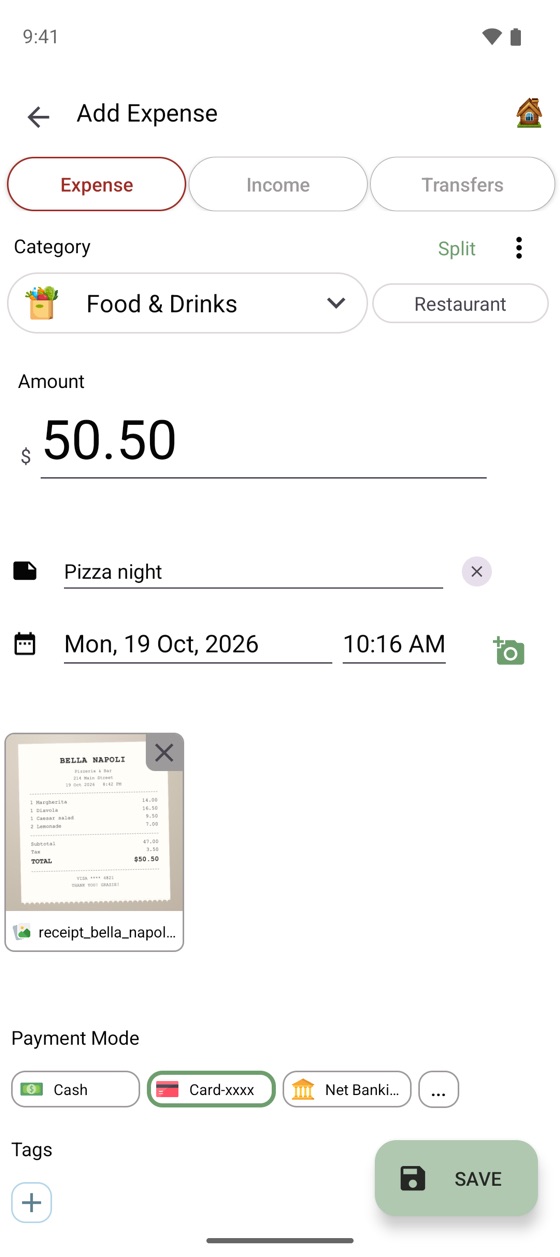
Cash, Venmo paybacks, a friend covering dinner: some spending never triggers a bank alert. Adding it takes a few seconds with the built-in calculator, and you can attach a photo of the receipt or add the entry by voice. Rent, subscriptions and paychecks can be set up once as recurring entries so they add themselves every month.
Step 3: Bring in your history from a CSV file
You don't have to start from zero. Nearly every US bank and card lets you download your transactions as a CSV file from its website, usually under Statements or Download transactions. You download it yourself, so no login is shared with anyone.
- Download the last two or three months as CSV from your bank's website.
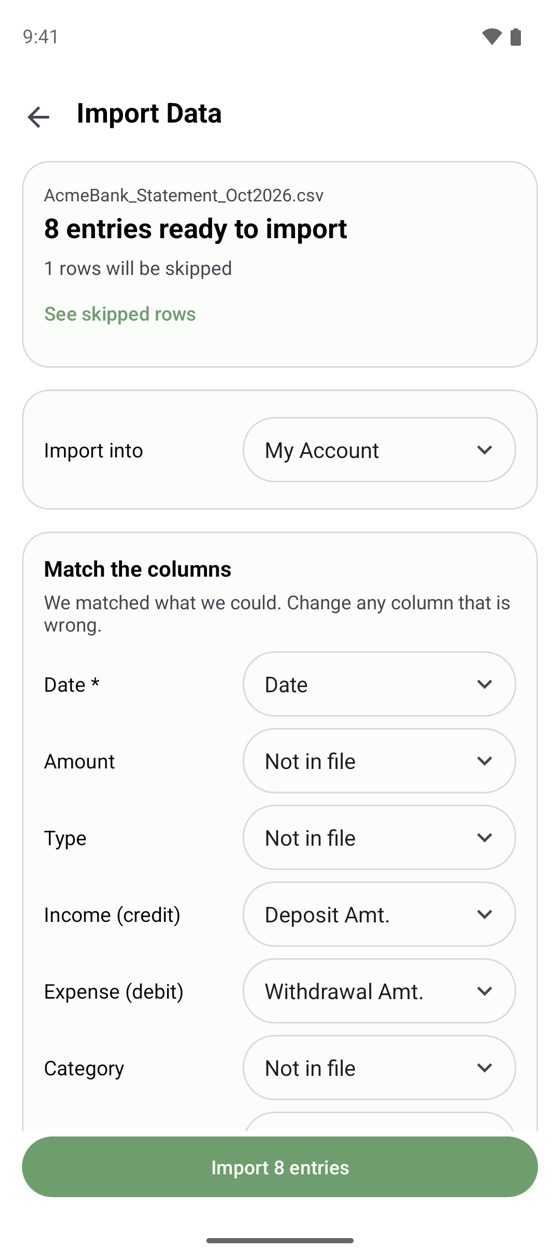
- In Expanager, go to ⋮ → Settings → Backup and Restore → Import Data and choose the file.
- Check the columns. Expanager matches Date, Amount, Deposit and Withdrawal columns for most banks automatically.
- Tap Import. Entries that are already in the app are skipped.
Step 4: Set budgets that warn you early
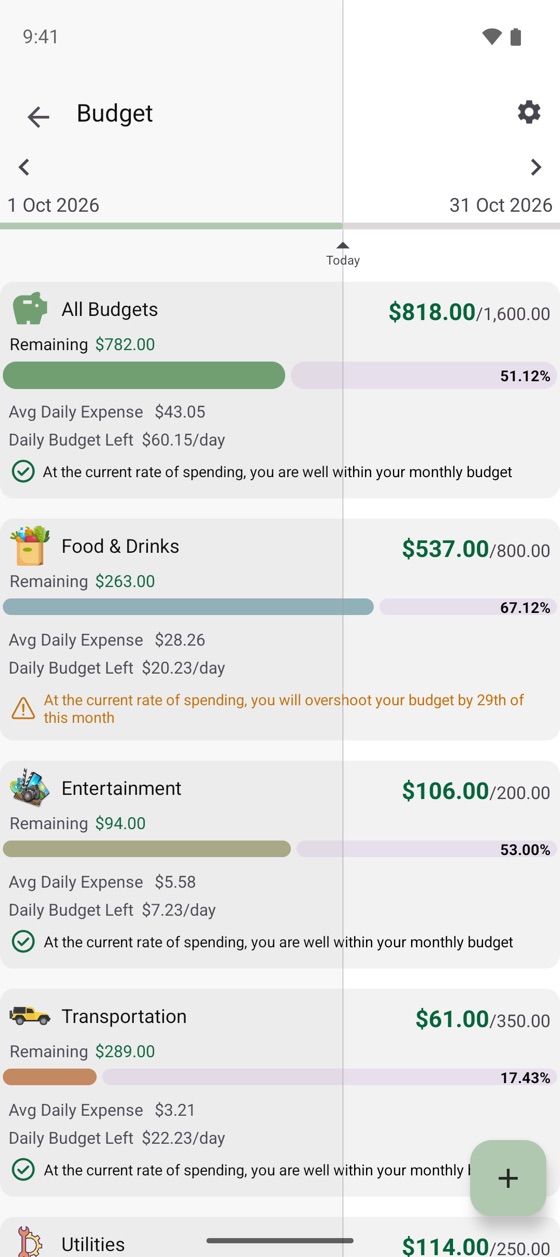
Give each category a monthly budget under ⋮ → Budget → +. Expanager compares how fast you're spending with how much of the month is left, shows a daily amount you can still spend, and warns you, for example "At the current rate of spending, you will overshoot your budget by the 29th", while there's still time to slow down.
Step 5: A five-minute monthly check
Alerts occasionally get missed, for example when your phone is off. Once a month, compare Expanager with your statement:
- Free: import the month's CSV again. Anything already in the app is skipped, so only the missing entries come in.
- Premium: use Reconcile statement. Load the statement as a PDF, CSV or Excel file and Expanager shows what's matched, what's only on the statement (add it with one tap) and what's only in the app.
What you give up, honestly
- Balances don't update by themselves. Expanager knows what you've spent, not what the bank says your balance is. You enter each wallet's starting balance once and every entry is added to or taken from it; the monthly check keeps it matching the bank.
- Investment and retirement accounts aren't pulled in. You can record what you invest under an investment category, but there's no automatic portfolio sync.
- Android only. There's no iPhone version, and because your data is on your phone, a second phone won't stay in sync by itself. You can edit entries from a computer over Wi-Fi with the PC Manager.
In return, nobody else has your bank login, nothing breaks when a bank changes its website, and your spending history belongs to you. The app works offline, has no ads in the free version, and needs no account. More on what offline and ad-free mean here.
Frequently asked questions
Can a budget app track spending without linking my bank account?
Yes. Expanager reads the transaction alerts your bank already sends you, as notifications or text messages, on your phone. You can also import the CSV file your bank lets you download, and add cash spending in a few taps. It never asks for your bank username or password.
Does it work with US banks and credit cards?
It works with alerts that include the amount, which most US banks and card issuers can send. Turn on transaction alerts in your bank's app, then turn on the notification or SMS helper in Expanager. If an alert isn't picked up, add keywords for your bank in Helper Settings, or email us an example and we'll add support.
Is it free?
Yes. Expanager is free to download with no ads. Bank alerts, CSV import, budgets and reports are in the free app. Premium is optional and adds extras such as Google Drive backup, multi-category budgets and statement reconciliation.
Where is my data stored?
On your phone. There's no account and no server holding your transactions. You can back up to a file you keep, or with Premium to a private folder in your own Google Drive.
Budget without the bank login.
Free on Google Play. No ads, no account.
